Facebook Forces Users to Display Hometown, Work, Interests

(Image used under: Creative Commons 2.0 [SRC])

Looks like they're doing it again. This time, they've made a change where even information you've set to private will be fully visible to strangers.

Today, Facebook removed its users' ability to control who can see their own interests and personal information. Certain parts of users' profiles, "including your current city, hometown, education and work, and likes and interests" will now be transformed into "connections," meaning that they will be shared publicly. If you don't want these parts of your profile to be made public, your only option is to delete them.

Of course, this doesn't affect me since my REAL friends already know all that stuff so I saw no reason to enter it into Facebook in the first place, but if you or someone you know has it, tell them to pull it down or put in fake data instead. Why broadcast information to strangers hoping that none of them will use it against you?

Update

It looks like Lifehacker posted an article on how to restore your privacy after the change. Check it out

Tags: ,

How to Permanently and Completely Delete Your Facebook Account

(Image used under: Creative Commons 2.0 [SRC])

There have been stories in the past of how difficult and how impossible it is sometimes to remove information from Facebook. But if you get sick of it, you can just delete the account entirely using this technique. Tags:

Schneier – Privacy is NOT Dead

Great summary of privacy from Bruce Schneier:

You've got a whole lot of tech CEOs proclaiming the death of privacy–especially when it comes to young people.

They're not technically sophisticated about privacy and make mistakes all the time, but that's mostly the fault of companies and Web sites that try to manipulate them for financial gain.

Hear, hear! Click here for the rest of the article.

Tags: ,

Forget to Log Out of Facebook For Much Pain

Note to Author: One of your jtags is missing a closing quote or a />. Your post is currently broken Tags:

5 Minutes Posing as a 14-year-old On Social Site

(Image used under: Creative Commons 2.0 [SRC])

A police official in the UK signed up a new account with a girls name and used data and a photo that suggested he was a 14 year old girl.

Within 90 seconds, a middle-aged man wanted to perform a sex act in front of me. I was deluged by strangers asking stomach-churning questions about my sexual experience. I was pressured to meet men with whom I'd never before communicated.

If you plan to let your kids use sites like these, you have to know what they're getting into. Make sure you have the name and password to their account (being friends with them is not enough) so you can see what they see and talk to them about it. Also bone up on safety precautions like learning the proper way to secure your account.

Tags: , , ,

Using HTTPS For Secure Login and Payment Online

What It Is

Because businesses online quickly figured out that sending names, passwords, credit card details, and other sensitive information out unprotected over the Internet was a bad idea, SSL was implemented.

SSL, or Secure Sockets Layer, is an encryption technique that's already built into your browser. You can see in the screenshots for Firefox and Internet Explorer here where 1) the HTTP in the address bar is listed as HTTPS (where the S stands for "secure") and 2) there is a lock icon (at the bottom right of the window for Firefox and just to the right of the address bar for IE).

https in Firefox
https in IE

Why to Use It

Nothing on the Internet was designed with security in mind, all of it was added as an afterthought. So think about this: when you hit the "Submit" button on any webpage, you're sending data from your computer to theirs, but the Internet is a vast inter-connected web of computer systems that spans the entire globe. Somewhere between you and them could be someone monitoring the traffic.

If someone's listening in, they can look right at your data and take your name and password or any other sensitive data you sent. What happens if someone took your name and password and logged into your mail, your bank, or any other service? They could embarass you, spam people from your account, take your money, etc.

Any time you're about to log in or send form data for an account or online order, make SURE that the HTTPS is active. In some cases, you might have to use a trick or too to turn it on. As in these cases:

Case 1: Finding the option for enhanced security and clicking it.

Case 2: Using my login trick to activate security.

When to Use It

You are most at risk when using hotspots at hotels, airports, and cafe's. Consider that the hotel itself or at least all the people there have access to the wireless networking equipment you connect to. Since you are going through them for Internet, they can easily see anything and everything you send. The same goes for your Internet service provider and many of the people who work for them (though you might assume, right or wrong, that the ISP has better physical protections and auditing to prevent their employees from doing it).

Take blind faith out of the equation and make sure HTTPS is active instead!

Limitations

When you see HTTPS, it means you have a mostly secure end-to-end connection, but the first problem is that SSL isn't absolute security. It's way better than nothing, but if something you're sending is absolutely critical to you, maybe you should call it in instead.

Second, bad guys with fake websites can get SSL security too. All that happens then is you have a very secure connection between you and the guy that's going to rip you off. The first defense against this is to use my trick to avoid bogus websites in the first place.

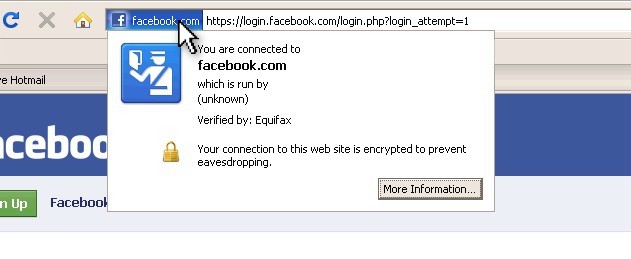
The second tip is to just click the certificate itself to learn more about where you are. Click the colored area to the left of the address (for Firefox) or to the right of the address where the lock Icon is (for IE).

Checking to see if you have a valid secure connection in Firefox
Checking the SSL certificate in IE

This popup window shows you who the secure connection belongs to and who is validating that fact. In one, Equifax is verifying that the page you're on is Facebook.com while VeriSign is validating that you're on eBay.

Always remember to look for HTTPS whenever logging in or entering other important data online. If it's not there, maybe you should think twice about clicking SUBMIT.
Tags: , ,

How to Force Login Security on Facebook

When you arrive at Facebook's homepage, you'll notice something odd:

Where's the security!?

That's right! No login security!

To be technical, the login is still redirected to a secure login page, but how could you ever know that without viewing the source code and understanding what you see there? If the page you're on doesn't show the HTTPS protection, it's safer to just assume it's not there.

So here I offer you this simple trick whenever logging into Facebook or any other service for that matter. See that login form over there? It looks like this:

Here's the form you use to login from the homepage

Instead of putting in your data, click LOGIN without entering any data. Leave it blank and click the button anyway

You'll get an error, but ignore it. The point is now you're on a page that's visibly protected.

Facebook will redirect you to their secure login page where you can visibly see the security is active by seeing the Using HTTPS For Secure Login and Payment Online and lock icons. Now you can login knowing that the chances of someone catching your name and password in transmission are greatly reduced.

An even simpler trick is to put a bookmark in your browser or bookmarks bar that goes to https://www.facebook.com and always use that bookmark to go to the page. If you're not on your personal computer, use the above trick instead.
Tags: ,

Beware the Inevitable Haiti Earthquake Relief Scams

Beware of spewing garbage

As always happens with current events and especially with relief and aid efforts, scammers come out of their holes to steal money meant for the unfortunate. E-mails and social networking messages will start pouring in and fake relief websites have popped up already. Avoid scams that only make scammers richer and donate only directly to major organizations (such as the Red Cross) or at least do your research first.

The Better Business Bureau has a listing of charities that are in good standing at http://www.bbb.org/us/charity/

For more information about the scams, see the Ars Technica article on the subject.

Tags: , , , , ,

Why You Shouldn’t Trust Facebook With Your Data

(Image used under: Creative Commons 2.0 [SRC])

It looks like a Facebook employee decided to come clean about Facebook's horrid data protection practices

Tags: , ,

CEO of Facebook Claims Privacy Isn’t a Social Norm

(Image used under: Creative Commons 2.0 [SRC])

As justification for the complete jerk-move Facebook recently made that forced many people's private information into the public against their will (his included), Mark Zuckerberg claimed publicly that privacy is no longer the social norm:

I think that people can agree they don't like things like getting embarrassed, getting fired, or getting robbed by the things found in their Facebook page (each of which happened). Sadly, people experiment with getting involved with the Internet via Facebook and it takes something drastic for them to learn that they should be more careful about what they share.

Tags: ,

Loading...

If you want to learn more about my professional background, click here to learn more.

Check out one of my guides/tutorials:

web posting dangers Tutorial
|INDEX|next: Spyware Scanners
Chat, Instant Messaging, Forums, and Internet Blogs are fun, but make sure you post carefully.
Sometimes spyware gets in your computer and the anti-virus won't stop it. Use a spyware scanner to find and remove spyware and adware.
Use a software firewall to detect bad code on your computer when it tries to connect to the Internet.
Always keep your system up to date with security patches or none of the rest of your security software will matter.
Use an encryption tool to protect your important data when storing or transmitting it.
Switch to Firefox for your web browsing and you'll be better protected from Internet threats.

... or check out any of my other guides and tutorials by clicking here!

Using HTTPS For Secure Login and Payment Online

Making online accounts is useful and fun, but doesn't mean much if someone can capture your login information and use it against you. Make sure to use this simple trick to prevent that from happening.

[Click for full description]

Using HTTPS For Secure Login and Payment Online

Making online accounts is useful and fun, but doesn't mean much if someone can capture your login information and use it against you. Make sure to use this simple trick to prevent that from happening.

[Click for full description]

Spyware Scanners

Learn how to detect and remove spyware and adware using a free scanning tool.

[Click for full description]

Software Firewall

Learn what a firewall is and why you want one on your computer.

[Click for full description]

Operating System Updates

Make sure to keep your operating system up-to-date with security patches or else none of the rest of your security software will be able to protect you.

[Click for full description]

File Encryption

Learn how to protect your important files on your computer or when transmitting them with free tools for file encryption.

[Click for full description]

Mozilla Firefox - Internet Browser

There are many browser choices out there. Read why I think Firefox is one of the best.

[Click for full description]