Make Windows7 Expand Folders Like XP

Have you noticed something odd about the way you navigate folders in Windows 7? It's not your imagination. Folders don't expand as you navigate like they did in XP!

If you, like me, depend on folders to auto-expand so you can quickly move files from subfolder to subfolder without having to open them all manually each time, here's the simple fix that you need.

Step 1. Click "Organize"

In the upper left area near the blue "BACK" button, you'll see the Organize button that opens the following menu:

Windows Explorer Organize Menu

Step 2. Click "Folder and search options"

In that menu, you see the option for "Folder and search options"? That's the one you want so click it. Now you get the Folder Options dialog:
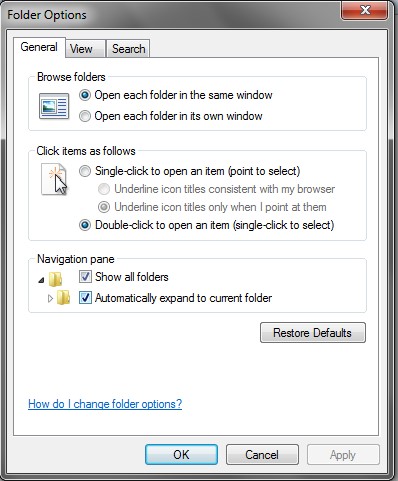
Windows Folder Options - General Tab

Step 3. Click "Automatically expand to current folder"

And as easy as easy can be, there's a checkbox for "Show all Folders" and another for "Automatically expand to current folder". It's the second one you want, but it probably wouldn't hurt to click the first one too (if it isn't checked already).

Tada! Now relish your new expanding-folder-ness!

Tags: , , ,

Loading...

If you want to learn more about my professional background, click here to learn more.

Check out one of my guides/tutorials:

computer security Tutorial
|INDEX|next: Spyware Scanners

Security Software

Make sure you have a up-to-date Anti-Virus Program to protect you against bad websites or files.
Sometimes spyware gets in your computer and the anti-virus won't stop it. Use a spyware scanner to find and remove spyware and adware.
Use a software firewall to detect bad code on your computer when it tries to connect to the Internet.
Always keep your system up to date with security patches or none of the rest of your security software will matter.
Use an encryption tool to protect your important data when storing or transmitting it.
Switch to Firefox for your web browsing and you'll be better protected from Internet threats.

Safe Computing Practices

Don't get tricked by fake alerts or clever webpages into downloading viruses or spyware!

... or check out any of my other guides and tutorials by clicking here!

Anti-Virus

A virus can come from files, e-mails, web pages, or even devices you plug in (like thumbdrives or printers) and destroy your files or your computer once they get in. An anti-virus is software designed to detect and prevent that from happening.

[Click for full description]

Spyware Scanners

Learn how to detect and remove spyware and adware using a free scanning tool.

[Click for full description]

Software Firewall

Learn what a firewall is and why you want one on your computer.

[Click for full description]

Operating System Updates

Make sure to keep your operating system up-to-date with security patches or else none of the rest of your security software will be able to protect you.

[Click for full description]

File Encryption

Learn how to protect your important files on your computer or when transmitting them with free tools for file encryption.

[Click for full description]

Mozilla Firefox - Internet Browser

There are many browser choices out there. Read why I think Firefox is one of the best.

[Click for full description]

Fake Alerts

Maybe you've done everything right and you're computer is sufficiently fortress-like, but then you or someone in your family falls for a simple scam that tricks them into directly installing the bad guy's virus! Learn how to spot and ignore fakes!

[Click for full description]