Bad Passwords

Considering how important it is to have good passwords, you don't want to make one that's easy for bad guys to guess or discover with computer tricks. Here are some examples:

Easy to Guess

Obvious

If your avatar, profile, and posts all point to your favorite car or sports team, maybe your password is related.

There are lists online of the most common passwords in existence and it's easy to see that people really do think alike. If you're using password, 123456, or qwerty, just stop reading and go change all your passwords now!

Ok, not really. You need to read the rest of this guide to figure out how to make a good password first.

Other obvious passwords are famous people, places, religious terms etc. How would a bad guy know what kinds of sports you like or your favorite cars? What's your screenname Mr. RedskinsLuva? Which hobbies did you list in your profile? How many pictures of your fishing boat did it take before I try some fishing terms or boat models as your password?

It's not hard to guess a password based on your hobbies and interests when you broadcast that information openly

Basic Information

Is your username iwasbornindc? Thanks! That helps.

Name, birthday, kid's names, pet's names (living or dead), birthplace, previous addresses (street name, city, or state) and, of course, all of the above with 123 or ! added to the end because gosh, no one would ever think of that!

I don't mean to mock, but please take to heart that if you make a password personal, then the only thing someone needs to know is personal information about you to guess it. And the number one way people learn your personal information is that you provide it online! (or if they're family, friends, or co-workers).


On a Sticky Note

Well... It doesn't get much more obvious than this!

You've probably heard the classic examples of people who put their password under the keyboard, behind the monitor or just pasted right out in the open. Though everyone laughs and thinks, "wow, how dumb!" we're still doing it! In 2005 my university had taken a promotional picture of the computer science people in front of some servers and in the background was a sticky note with the root administrator password! The photo made it to the university's computer science program brochures before anyone noticed.

Granted if no one ever comes in your house or into your office where they can see the sticky you might be safe, but the minute that changes (cleaning lady, relative, repair guy), you're at risk.

Easy to Discover

The techniques described above work for people who know you or take the time to learn a little about your obsessions, but your average hacker doesn't care. Their techniques rely on first getting access to a database or file full of system passwords.

If they get a copy of a system's password file, hackers can try thousands of password combinations a second until they find one that works!

If they can manage to break into a poorly secured web server (as in the TJX example), they can locate the password file/database and download a copy to their machine.

Using password cracking software found easily online or something they built custom (less likely depending on how pro the hacker is), they'll attack the password file itself at a rate of thousands to hundreds of thousands of tests per second.

Short Passwords

This would take about 50 minutes to crack by hand
On a computer, this takes mere seconds

So consider that some hacker has a file with your password in it and can test passwords until one hits. That's like grabbing a combination lock, pulling on it to see if it's open, then turning the dial and trying again. Repeat until they get in.

This technique is called a brute force attack which is to say they just try every combination, one after another. Using this technique it is guaranteed that they'll get in eventually. To defend against this, length is key!

The thing about passwords is that every time you add a letter, you are exponentially raising the number of attempts that bad guys have to make. Check this out (rounding for simplicity):

  • 123: 1,000,000 combinations
  • 1234: 1,000,000,000 combinations
  • 12345: 10,000,000,000 combinations
  • 123456: 1,000,000,000,000 combinations
  • 1234567: 1.0 × 10¹⁴ combinations
  • 12345678: 1.0 × 10¹⁶ combinations

In theory,with current computing power trying to crack your 8 character password would take about 115 days. Increase that by one character (to a length of 9) and it will take them 31 years instead!

Randomness

So having an 8 character password minimum is absolutely essential, but there are some problems with this. The first is that hackers aren't dumb. They know you're far more likely to have a password that looks like this:

HarryPotter!

Than this:

G7x89&ft1-$

There are dictionaries in foreign languages too!

That means if they try all the more common phrases, words, and combinations first, they're likely to not have to search all those trillions of combinations at all! They do this with files called "dictionaries" that contain the most common passwords in order. Once they've done brute force through the first 5 to 7 character combinations, they try the dictionaries for longer passwords.

And yes, they have dictionaries for every language so if you think you're being clever by saying it in French or Spanish, you're not.

So if you choose anything like this, you're at risk:

  • Any word in a real dictionary no matter how long
  • Any two-word combination from a real dictionary
  • Famous places
  • Famous people
  • Anything sports related
  • Words relating to popular TV shows or movies
  • Religious terms or short phrases
  • Pop culture anything
  • Writing in 733t. We know that a @ is substituted for A and a ! looks like an L

And of course any of the above with modifications that people can easily think of. Adding numbers to the end, alternating case, putting punctuation between the words, etc.

And one last one: using patterns on the keyboard is also something hackers have thought of before.

Wrap Up

I know it seems like making a password that most other people wouldn't use is hard, but it really isn't once you learn some simple tricks.

Passwords

In most cases, the only thing that protects your money, your reputation, and your livelihood are the passwords you use to protect them. Computer security, online accounts, and everything else all pretty much rests on your ability to make and keep good passwords. So why is it that the average person spends so little time and effort doing it right?

Chances are it's because they were never taught how or why they needed to do so. Well, let's change that!

Making Good Passwords

To understand what makes a good password, let's talk about what makes a bad one first.
Making good passwords can be complex, but here are some tips and tricks that will make it easier.

Password Protection

Once you've taken the trouble to make a good password, the next step is to keep it safe!
Now that you've done all this work, you have to learn the most important rule of all: DON'T GIVE THEM AWAY!
Tags: , ,

Wireless Security

Wireless routers are great aren't they? With them, you can connect desktop computers without running wires all over the house and your laptops will work upstairs, downstairs, outside or whereever you are.

But maybe you've noticed when you try to connect that there's lots of other wireless networks around. Have you ever tried to connect to one? If your neighbor has left their wireless open and unlocked, you can get on their home network and maybe browse their files. Well that also works in reverse; if you haven't set your network up right, your neighbors might be browsing through your computers.


Learn how to keep your home wireless network safe by properly configuring your router.
Tags:

Newegg.com

Newegg is one of those sites that just doesn't seem to have a downside. Check out these pluses:

Great Search and Sorting Function

Newegg - Electronics store

In this case, I wanted a laptop so I clicked that category. Now I can choose filters that will narrow the results by brand, screen, hard drive, processor, memory etc. This way I never waste my time on options with tiny screens or that are way out of my price range.

Even better, I can go to power search where I can add multiple filters from the same category! Now I can choose anything from EITHER Sony or Toshiba and within three price range categories.

Now I can get REALLY specific

The main reason I love this feature so much is that I don't care if a screen is 15 inches or 20, but I definitely don't want anything smaller! I also am very picky about brand while maybe in this case any graphics card is fine as long as it's an Nvidia and not a Radeon type. Power Search lets me do that!

Great Prices and Shopping Options

I have found Newegg to consistently have some of the best prices on anything around. Even if they're no lower than anyone else, they often offer free shipping or other deals. Even if there's no particular deal at the moment, they have a "Price Alert" function where you can enter a price to watch for. If the item goes to or below that price, you'll get an e-mail.

Many options

For the alert, enter any price you want, but note you'll get no response if the price never goes to that level. You can also set other conditions like if it goes to free shipping or has a rebate (I recommend checking both).

Setting a price alert

The Best Research Tool of All

There's 8 reviews and all of them are very high (except one)

Nothing beats direct feedback from users who have purchased products before. Newegg's community is very good about giving feeback both positive and negative and you will learn the best from the experiences of others.

An example of a positive comment

In this comment, the user tells us how much he loves this laptop, but also mentions that it has trouble going into sleep mode. By scanning the other comments or doing some research online, it's easy to verify if this is an isolated issue with just this user or something real to worry about.

An example of a negative comment

Now there was that one completely negative comment that seems out of place. Reading it, you see that the user is not complaining about the product, but about Newegg itself. And even then, it's not a very credible complaint. This kind of review can be disregarded.

The point is that you have a lot of good information from other users about the pros and cons of any product. In some cases, the reviews one after the other said that the power supply unit I was looking at was cheap, but wouldn't likely last more than a year. That was really good information to have before I purchased.

Great Service

Besides fast shipping that is often free, Newegg both in my experience and as can be seen from the other shoppers on the site, provides excellent service consistently.

Bash the product, love the store

While researching products I often find ones that mention that there was a problem of some kind, but that Newegg fixed it, refunded, replaced, etc. No matter how nice a site seems otherwise, without good service, it's no good, but Newegg is an great example of how websites should be.

Summary

So there you have it. Not only do I use Newegg all the time, I love the site and I recommend you try it out too. Click the logo below to visit them:

Tags: , , , , ,

How to Avoid Bogus Websites

How Bogus Websites Are Made

It's extremely easy to make any random website look just like one you're used to. Try this: go to your favorite website and right-click the mouse over some empty space. See this menu?

Mine will probably be a little different, but you get the idea right?

One of the options is to "View Page Source" or the source code of the page you're viewing. That means I can easily cut and paste the code that makes any page look like it does. That means that if I were to register Neweg.com (which is one letter off of the real Newegg.com), I could have a completely fake, but very real looking, website waiting for you.

Once you tried to log in and I captured that information, I could redirect you to the real site and you'd never know the difference until I had made a bunch of purchases in your name (I'll be talking about shopping online in later sections of this guide).

The two main ways to get you to my new trap-site are Phishing and somewhat (though far less common) misspelled addresses.

Misspelled Addresses

I already talked about phishing e-mails in my other guide, so let me explain the other. Say you were to buy a website domain that sounds like or is just a few letters off of a major website. Either that or you register a site with the same name, but different ending.

Do you think there's a big difference between Hotmail.com (Microsoft's e-mail website) and Hotmale.com (Gay XXX hardcore)? Yes there is. There's also a big difference between Whitehouse.gov and Whitehouse.com

No porn here
Not something you want to find accidentally

In these cases, you might embarrass yourself at work or when trying to show the kids how to get involved in the political process, but these aren't going to drain your bank account. But the reason I bring it up is that you can use the same trick to defend against both of these problems.

The Search Engine Trick

Uh oh.... heading for trouble here.

So whether phishing to a site that's really going to rob you or misspelling your way to something really embarrassing, the solution is the same. Sure you can use your known-safe bookmarks to get to your major websites and services, but my recommendation is for when you type an address directly into your address bar.

Instead of typing addresses directly, type the site you want into a search engine instead? Sound like a pain? Well, let me give you three good reasons why this is a good idea:

Get the search engine involved!

1. Fakes Don't Float

No fakes to be found

If the thing you're going to is a major site of any kind, it will always be listed in the first few links. Banks, webstores, charities, etc. Search engines make money by helping you find real stuff and culling the fake. In other words, it's their job to make sure you never see a bogus site in a search listing (certainly not on the front page).

2. Malware Protection

Google at least (and probably others) have built-in protections to help keep you away from bad sites. If you do accidentally click a link that leads somewhere bad, Google will attempt to stop you with a warning like this:

Stop! Don't proceed!

What this means is that Google has already checked the site for bad stuff and found it. Proceed at your own risk!

3. Site Scanner Functions

You see those cute green check-mark icons at the end of all my results? That's a function of my Anti-Virus which has a function that tests search results for safety. If the linked site is a known bad-guy, it warns me with a yellow or red icon instead.

Yellow is bad and red is worse

When you see the different colors, you can click them for details, but generally, it's best to avoid anything that isn't green. Many anti-virus programs have this feature.

Summary

Once you're sure you're on the right webpage, bookmark it if you want, but any time you're tempted to type a url, take a second and click the home button or open a new window (which opens with your homepage) and type it into a search engine instead.

The three great protections against bad sites listed above only work if you use a search engine and not when typing a website address directly.

Tags: , ,

Using HTTPS For Secure Login and Payment Online

What It Is

Because businesses online quickly figured out that sending names, passwords, credit card details, and other sensitive information out unprotected over the Internet was a bad idea, SSL was implemented.

SSL, or Secure Sockets Layer, is an encryption technique that's already built into your browser. You can see in the screenshots for Firefox and Internet Explorer here where 1) the HTTP in the address bar is listed as HTTPS (where the S stands for "secure") and 2) there is a lock icon (at the bottom right of the window for Firefox and just to the right of the address bar for IE).

https in Firefox
https in IE

Why to Use It

Nothing on the Internet was designed with security in mind, all of it was added as an afterthought. So think about this: when you hit the "Submit" button on any webpage, you're sending data from your computer to theirs, but the Internet is a vast inter-connected web of computer systems that spans the entire globe. Somewhere between you and them could be someone monitoring the traffic.

If someone's listening in, they can look right at your data and take your name and password or any other sensitive data you sent. What happens if someone took your name and password and logged into your mail, your bank, or any other service? They could embarass you, spam people from your account, take your money, etc.

Any time you're about to log in or send form data for an account or online order, make SURE that the HTTPS is active. In some cases, you might have to use a trick or too to turn it on. As in these cases:

Case 1: Finding the option for enhanced security and clicking it.

Case 2: Using my login trick to activate security.

When to Use It

You are most at risk when using hotspots at hotels, airports, and cafe's. Consider that the hotel itself or at least all the people there have access to the wireless networking equipment you connect to. Since you are going through them for Internet, they can easily see anything and everything you send. The same goes for your Internet service provider and many of the people who work for them (though you might assume, right or wrong, that the ISP has better physical protections and auditing to prevent their employees from doing it).

Take blind faith out of the equation and make sure HTTPS is active instead!

Limitations

When you see HTTPS, it means you have a mostly secure end-to-end connection, but the first problem is that SSL isn't absolute security. It's way better than nothing, but if something you're sending is absolutely critical to you, maybe you should call it in instead.

Second, bad guys with fake websites can get SSL security too. All that happens then is you have a very secure connection between you and the guy that's going to rip you off. The first defense against this is to use my trick to avoid bogus websites in the first place.

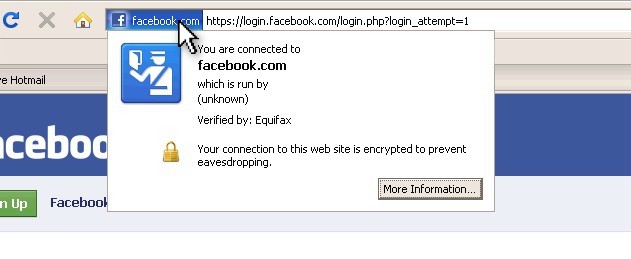
The second tip is to just click the certificate itself to learn more about where you are. Click the colored area to the left of the address (for Firefox) or to the right of the address where the lock Icon is (for IE).

Checking to see if you have a valid secure connection in Firefox
Checking the SSL certificate in IE

This popup window shows you who the secure connection belongs to and who is validating that fact. In one, Equifax is verifying that the page you're on is Facebook.com while VeriSign is validating that you're on eBay.

Always remember to look for HTTPS whenever logging in or entering other important data online. If it's not there, maybe you should think twice about clicking SUBMIT.
Tags: , ,

Internet Safety

Internet Safety

This guide is not about how to keep your computer safe FROM the Internet or about how to be safe from emails from the Internet but is instead a listing of tips, tricks, and advice how to be safe when using the Internet and Internet services.


Hire Jeremy To Help You

Help your friends/family/coworkers learn this by having Jeremy come and teach it in person!

This is a HUGE topic and you can read and read and read until you learn enough or you can have Jeremy come explain it in person. In the How to Destroy Yourself Online seminar, Jeremy explains the 6 biggest mistakes people make online and how not to be one of those people (in about 60 minutes).

This seminar is good for:

  • People who know what the Internet is.
  • People who don't know what the Internet is.
  • People who don't know what the Internet is, but want to.
  • People who don't know what the Internet is and don't want to, but probably will have to sooner or later.

Ok, to be straight, it's good for anyone who spends a lot of time online or knows people who do. Especially for students and relatives of students who grew up with the Internet, but have never been trained of the dangers.

Do you want Jeremy to explain this in person?
CICK HERE!

Learn on Your Own

I want people to have this information so I'm holding nothing back. Read pretty much everything I'd tell you anyway right here, right now if you wish!

General Safety

Account Protection


How to Force Login Security on Facebook

When you arrive at Facebook's homepage, you'll notice something odd:

Where's the security!?

That's right! No login security!

To be technical, the login is still redirected to a secure login page, but how could you ever know that without viewing the source code and understanding what you see there? If the page you're on doesn't show the HTTPS protection, it's safer to just assume it's not there.

So here I offer you this simple trick whenever logging into Facebook or any other service for that matter. See that login form over there? It looks like this:

Here's the form you use to login from the homepage

Instead of putting in your data, click LOGIN without entering any data. Leave it blank and click the button anyway

You'll get an error, but ignore it. The point is now you're on a page that's visibly protected.

Facebook will redirect you to their secure login page where you can visibly see the security is active by seeing the Using HTTPS For Secure Login and Payment Online and lock icons. Now you can login knowing that the chances of someone catching your name and password in transmission are greatly reduced.

An even simpler trick is to put a bookmark in your browser or bookmarks bar that goes to https://www.facebook.com and always use that bookmark to go to the page. If you're not on your personal computer, use the above trick instead.
Tags: ,

V for Vendetta

V for Vendetta (bonus features) : Natalie Portman
(See online!)

Summary

In the near future, the UK has come under oppressive rule by its own government that put the people of the country under their boot. Undesirables like dissidents, homosexuals, or anyone that would speak openly of dissatisfaction is taken away in the night and never seen again. Meanwhile, a strange masked hero takes on the entire regime by blowing up a public building and threatening to destroy the house of parliament in one year's time.

Lessons

  • A society that gives up its privacy and rights can become dark and broken and may never regain them.
  • With enough technology and complete media control, a very small number of people can subvert and control an entire nation.
Tags: , , , , ,

Turn Off Driver Signing Enforcement in Windows 7

So here's the deal (my theory anyway); Microsoft is trying to make their system more stable and secure, but to do that, they have to have some standards of quality for drivers used on the system. That's good in theory, but the problem is that the only realistic way of doing that means that Microsoft makes companies pay them to certify and then sign their drivers.

While I can't argue with the theory, the practice is that some of your favorite software and still usable hardware won't work and that's not cool. Even worse, sometimes you won't know what's wrong. There's no indication of what's wrong, just that your hardware or software isn't loading right.

However, there's a trick to make Windows stop forcing drivers to be signed. Before giving up, try this trick. When booting, press the F8 function key a few times until you see this boot menu:

If you have ever loaded Safe Mode in any version of Windows before, this should look familiar. In fact, Safe Mode is one of the options, but in this case, the one you're looking for is a new option near the bottom called Disable Driver Signature Enforcement

Use the arrow keys to highlight it and then press the ENTER key. Windows will load like normal, but now it won't require Microsoft approved drivers.

Making it Easy

So that ends the portion of this post that sounds like every other site online that tells you the same thing. The one thing that they're all missing is this: it's very easy to start booting your computer and turn to check a phone or pick up something off the floor and miss the timing for hitting the F8 key.

If you do, the computer will boot and you'll have to restart it and try again (which is very annoying!). So here's a trick for delaying the boot long enough for you to click the button.

Step 1: Download EasyBCD

First, download EasyBCD from here.

EasyBCD is a program that helps you set up multiple boot options in Windows for when you have more than one version of Windows on your computer and want to be able to choose between them while loading (You're not actually adding a second boot, you just want to activate the menu for one).

Step 2: Open EasyBCD and Add an XP Dual Boot Option

Start up EasyBCD and this is what you'll see.

When you see the Add/Remove Entries screen, on the bottom right, you'll see this:

You may notice that the default options are for installing an XP dual boot option so you can just click to add it now if you want. However, I suggest changing the name from Windows XP to "Delay Option" or "Don't Click Me" or similar first. Click Add Entry and then you should see this:

Step 3: Use it!

You're done! EasyBCD is useful if you want to change the name, you actually DO add a second operating system, or if you experience boot problems (which EasyBCD can help fix), but you can remove it if you want.

So now whenever you boot, it will stop and show you this screen for at least 30 seconds:

All we've done is introduce a delay at the precise point you would need to press F8. As long as you press F8 before the countdown completes and the boot continues, you'll still see the boot menu at the top of this article that will let you pick to disable driver signing. Huzzah!

Tags: ,

Loading...

If you want to learn more about my professional background, click here to learn more.

Check out one of my guides/tutorials:

data defense Tutorial
|INDEX|next: Protecting Social Security Numbers
It's impossible to fully prevent credit card fraud, but there are several things you can do to help.
Social security numbers have become the gateway to all kinds of identity abuses so the less people you give it to, the better.
Your data is as valuable as money so protect it like money!
What do you do once your data is already out there? This.

... or check out any of my other guides and tutorials by clicking here!

Bad Passwords

To understand what makes good passwords, first check out some of the worst passwords out there and what makes them so bad.

[Click for full description]

Password Tips and Tricks

It's impossible to expect someone to make good passwords by just giving them some rules. There are tricks that make your passwords secure and easy for you all at the same time.

[Click for full description]

Password Protection

It's really a skill to come up with secure passwords that you can remember. Once you've learned how, remember that it doesn't matter how good you are if you don't protect your password properly.

[Click for full description]

Password Mugging

A disturbing new practice among websites and services is where they ask you for your user name and password to other sites. I call this "Password Mugging"

[Click for full description]

Phishing

By far the most dangerous thing you'll find in e-mails is a lie. Sending a bogus e-mail to someone is generally called phishing, but can also be referred to as a Nigerian scam (depending on the goal of the e-mail). Learn to recognize and deal with phishing before it's too late.

[Click for full description]

Anti-Virus

A virus can come from files, e-mails, web pages, or even devices you plug in (like thumbdrives or printers) and destroy your files or your computer once they get in. An anti-virus is software designed to detect and prevent that from happening.

[Click for full description]

Online Addiction

Concerned about online addiction? You should be. Learn the types, the signs, and the preventions.

[Click for full description]

The Consequences of Posting Online

It's fun to post online. What you think, what you feel. But words typed and posted on the Internet can come back to bite you more than anything you could say with your mouth.

[Click for full description]

Tricks and Scams

Just because you won't willing give up data doesn't mean that I can't trick you out of it. Don't fall for these well known tricks!

[Click for full description]

Account Creation Tips

When you create an account with an online site, you should know a few things first.

[Click for full description]

Account Hijacking

One of the newest threats we face is the risk of someone getting control of your online account and using it against you and the people you know. Do everything you can to prevent that from happening!

[Click for full description]

Using HTTPS For Secure Login and Payment Online

Making online accounts is useful and fun, but doesn't mean much if someone can capture your login information and use it against you. Make sure to use this simple trick to prevent that from happening.

[Click for full description]

Using HTTPS For Secure Login and Payment Online

Making online accounts is useful and fun, but doesn't mean much if someone can capture your login information and use it against you. Make sure to use this simple trick to prevent that from happening.

[Click for full description]

Using HTTPS For Secure Login and Payment Online

Making online accounts is useful and fun, but doesn't mean much if someone can capture your login information and use it against you. Make sure to use this simple trick to prevent that from happening.

[Click for full description]

Protecting Credit Cards

Credit card fraud isn't ID Theft, but is closely relatedare often used fraudulently so do what you can to prevent it.

[Click for full description]

Protecting Social Security Numbers

Social security numbers have become the gateway to all kinds of identity abuses so the less people you give it to, the better.

[Click for full description]

Being a Data Scrooge

Learn to protect your personal information the way Scrooge did his money.

[Click for full description]

Reputation Management

Just because there are things out there about you that are out of your control and are unflattering or worse, doesn't mean you're powerless.

[Click for full description]